watchOS 6 Battery Life Optimization Tips to Stop Fast Drain
Many Apple Watch users face sudden battery drops. You might wonder, why is watchOS 6 draining battery fast? Often, the issue comes from background apps constantly refreshing. New features like the Noise app and the Always-On display also consume a lot of power. When your watch constantly searches for cellular signals or syncs data, the battery suffers. Minor software bugs after an update can cause the system to loop, which generates heat and drains juice. Understanding these causes helps you take control of your device's power.
What Are the Best watchOS 6 Battery Tips?
To get the most out of your wearable, you need practical strategies. What are the best watchOS 6 battery tips? The quickest fix is to manage your screen brightness and wake settings. Reducing the time the screen stays on prevents unnecessary power loss.
Another great tip is to turn off features you do not use. For example, if you do not need walkie-talkie mode or constant heart rate monitoring, disabling them saves massive amounts of energy. Small tweaks lead to big gains in daily usage.
Top 10 watchOS 6 Battery Life Optimization Tips
To help you get through a full day without rushing to the charger, here are the top 10 watchOS 6 battery life optimization tips. These steps are easy to follow and highly effective for any user.
1. Turn Down Screen Brightness
The bright OLED screen looks amazing, but it eats up power fast. Open the settings app on your watch, tap on Display & Brightness, and lower the slider. A dimmer screen works perfectly fine indoors and extends battery life significantly.
2. Reduce the Screen Wake Time
By default, your watch screen stays on for 15 seconds or 70 seconds when you tap it. Change this setting to 15 seconds to save power. To do this, go to Settings, tap General, choose Wake Screen, and select the shorter duration.
3. Disable Wake on Wrist Raise
Every time you move your hand, your watch screen lights up. This happens hundreds of times a day, even when you do not mean to look at it. Turning off "Wake on Wrist Raise" forces the screen to stay off until you tap it manually.
Settings -> General -> Wake Screen -> Turn off Wake Screen on Wrist Raise
4. Turn Off the Always-On Display Feature
If you use an Apple Watch Series 5 running watchOS 6, the Always-On screen is a major battery hog. Turning this feature off keeps the screen completely black when your wrist is down, saving hours of daily battery juice.
5. Control Background App Refresh
Many apps constantly update information in the background, which uses up Wi-Fi and Bluetooth power. Open the Apple Watch app on your paired iPhone, go to General, tap Background App Refresh, and turn off the toggle for apps you rarely use.
6. Limit Environmental Noise Monitoring
The watchOS 6 Noise app constantly checks the sound levels around you. While this protects your ears, it keeps the microphone active all day. Turn this feature off in the Noise settings to stop the constant background battery drain.
7. Switch Off Unnecessary Notifications
Every time your watch vibrates or plays a sound for a notification, it loses power. Open your iPhone Watch app and customize your notifications. Turn off alerts for social media apps or games that you do not need on your wrist.
8. Use Theater Mode During Movies and Sleep
Theater Mode keeps your screen dark even if you move your arm or receive a notification. It also silences alerts. Swipe up on your watch face to open the Control Center, and tap the two comedy/tragedy masks icon to turn it on.
9. Turn Off Cellular Connectivity When Not Needed
If you have an LTE Apple Watch, using cellular data away from your iPhone drains the battery very quickly. If your iPhone is nearby, make sure cellular is turned off on the watch so it relies on the low-energy Bluetooth connection instead.
10. Turn On Power Saving Mode During Workouts
The fitness app tracks your heart rate continuously during workouts, which takes a lot of energy. You can enable Power Saving Mode in the Workout settings to turn off the heart rate sensor during walking or running exercises.
How to Save Battery on Apple Watch watchOS 6?
If you want to know how to save battery on Apple Watch watchOS 6? the secret lies in managing your connections. Bluetooth uses much less energy than Wi-Fi. Keeping your iPhone nearby ensures your watch uses Bluetooth instead of searching for Wi-Fi networks.
You can also use simple watch faces. Colorful watch faces with lots of moving parts require more processing power. Choosing a minimalist black-and-white watch face saves energy because black pixels on an OLED screen remain completely turned off.
Read also: Apple Watch Series 6 Waterproof: Everything You Need to Know
Best Battery Saving Settings for watchOS 6
Finding the best battery saving settings for watchOS 6 requires a quick trip to your settings app. Turning off Haptic Feedback is a hidden trick. The tiny motor that vibrates your wrist uses a lot of mechanical power. Lowering the vibration strength helps save energy.
Pro Tip: Turn off automatic app downloads. When your iPhone downloads a new app, it often installs the watch version automatically. Disabling this stops background download tasks that drain your battery unexpectedly.
Improve Apple Watch Battery Performance watchOS 6
To improve Apple Watch battery performance watchOS 6, regular software maintenance is highly important. Always update to the latest stable version of watchOS 6. Apple frequently releases minor updates that patch bugs causing severe battery drainage.
Clean Your Watch Charging Ports
Sometimes, dirt and sweat build up on the back of the watch. This buildup prevents the magnetic charger from juicing up the battery fully. Wiping the back of the watch with a clean microfiber cloth ensures a proper and efficient charge.
Force Restart After Every Update
If your watch feels warm or loses power quickly after an update, perform a force restart. Hold down both the Side Button and the Digital Crown for 10 seconds until the Apple logo appears. This clears out stuck system tasks.
watchOS 6 Battery Drain Overnight
Many users notice a watchOS 6 battery drain overnight even when they are not wearing the device. This usually happens because the watch is still searching for notifications or syncing data in the dark.
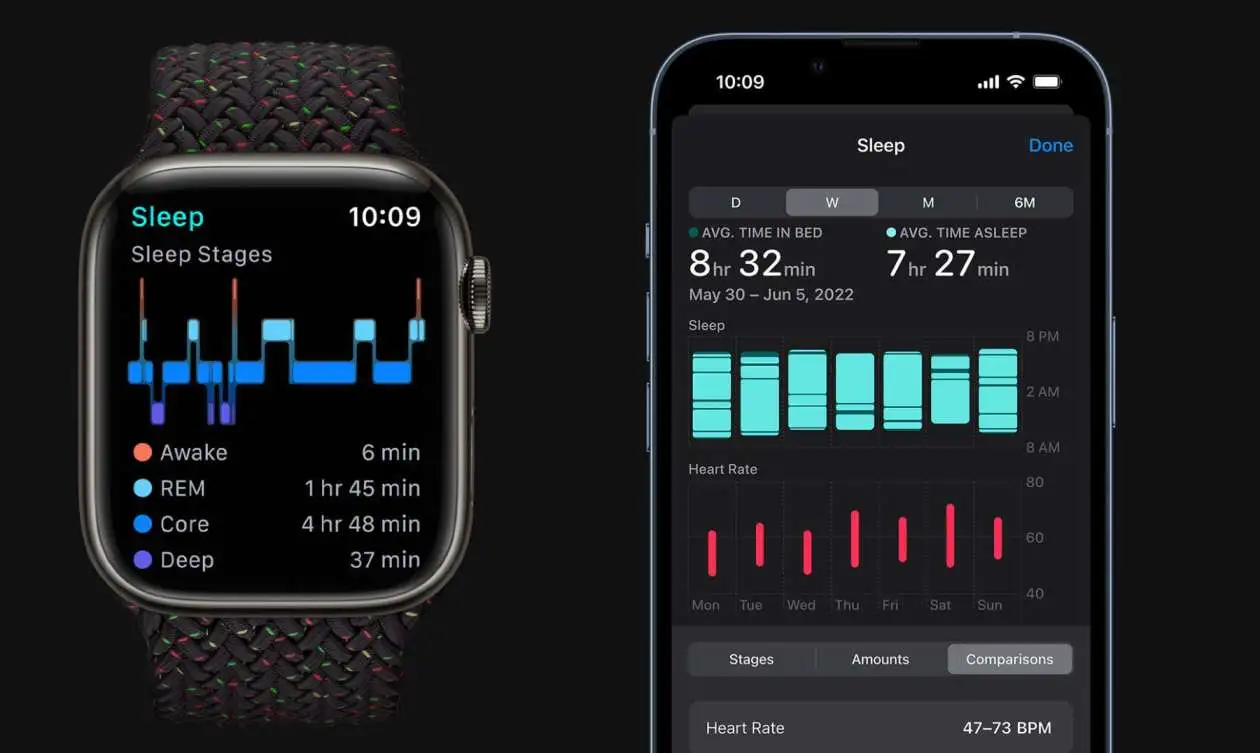
To prevent overnight drop, turn on Airplane Mode or Theater Mode before going to bed. If you use the watch for sleep tracking, ensuring all background apps are closed prevents the battery from dropping more than 5% to 8% while you sleep.
Optimize Apple Watch Settings for Better Battery Life
To optimize Apple Watch settings for better battery life, consider turning off Siri's active listening feature. The "Hey Siri" and "Raise to Speak" options mean the microphone is always listening for your voice, which keeps the processor awake.
| Feature to Disable | Where to Find It | Battery Saving Impact |
|---|---|---|
| "Hey Siri" Listening | Settings > Siri | High |
| Always-On Display | Settings > Display | Very High |
| Background App Refresh | iPhone Watch App > General | Medium |
| Automatic App Downloads | Settings > App Store | Medium |
Apple Watch watchOS 6 Power Saving Tips
Here are some extra Apple Watch watchOS 6 power saving tips that focus on smart usage habits. Avoid exposing your watch to extreme temperatures. Very hot or freezing weather damages the lithium-ion battery cells, causing them to lose charge rapidly.
Another great trick is to use the Do Not Disturb mode during busy work hours. This prevents the screen from lighting up repeatedly with non-urgent alerts, keeping your battery safe until you are ready to check your messages.
Advanced watchOS Battery Optimization Settings
For users who want maximum control, look into advanced watchOS battery optimization settings. One major setting is reducing motion and transparency. This turns off the fancy animations when you open apps, which saves graphical processing power.
- Go to Settings on your watch.
- Tap on Accessibility.
- Select Reduce Motion and turn it on.
- Select Reduce Transparency and turn it on.
Apple Watch Low Power Mode vs Normal Mode
Understanding Apple Watch low power mode vs normal mode is vital when your battery drops below 10%. In watchOS 6, this is called Power Reserve mode. It turns off all smart features, app access, and fitness tracking completely.
Power Reserve mode keeps your watch alive for hours just to show the time, but it stops all communication with your phone. Use it only as a last resort to avoid a dead battery.
watchOS 6 Beta vs Stable Battery Life
When looking at watchOS 6 beta vs stable battery life, the stable version wins every single time. Beta software is meant for testing and contains unfinished code. This code often runs background logs that destroy your battery life in a few hours.
If you are running a beta version, downgrade to the official public release of watchOS 6. The stable software contains optimized battery management systems that ensure consistent performance throughout the entire day.
watchOS 6 vs watchOS 5 Battery Life
The comparison between watchOS 6 vs watchOS 5 battery life shows that watchOS 6 requires slightly more power due to advanced features. WatchOS 5 was lightweight, but watchOS 6 brings an independent App Store directly to your wrist.
Because the watch now downloads apps directly without needing an iPhone, it performs heavier tasks. Following proper optimization steps brings your watchOS 6 battery life back up to the excellent levels you experienced on older software versions.
Hidden Apple Watch Battery Saving Features
There are a few hidden Apple Watch battery saving features that most users miss. One of them is deleting built-in apps you do not use. WatchOS 6 allows you to remove native apps like Cycle Tracking or Walkie-Talkie if they are not part of your daily routine.
Another hidden trick is turning off the walkie-talkie "Available" toggle. When you leave this toggle green, the watch stays connected to Apple's communication servers, which drains power silently in the background.
Expert Quotes and Industry Opinions
"Lithium-ion batteries are sensitive to software cycles. Properly managing your background refreshes on watchOS 6 can add up to 4 hours of extra usage time daily without losing core health tracking features."
— Tech Hardware Analyst Journal
"Many users blame bad batteries when the real culprit is notification overload. Every alert wakes up the internal processor. Streamlining your notifications is the single most effective way to save power."
— Wearable Technology Review
Frequently Asked Questions
How long should an Apple Watch battery last on watchOS 6?
An Apple Watch running watchOS 6 should easily last around 18 hours with normal daily use. This includes checking the time, receiving notifications, and tracking a short workout.
Does the Noise app drain Apple Watch battery fast?
Yes, the Noise app drains power because it leaves the microphone active to measure decibel levels. Turning it off improves battery performance.
Why is my Apple Watch battery draining fast after the watchOS 6 update?
This usually happens because the system is rebuilding its internal files and indexing data. A force restart usually fixes this issue within a day.
Can I check my Apple Watch battery health on watchOS 6?
WatchOS 6 does not have a built-in battery maximum capacity percentage screen like newer versions. You must judge battery health based on daily performance or ask an Apple technician.
Does turning off Bluetooth save watchOS 6 battery?
No, keeping Bluetooth on actually saves battery. Turning it off forces your watch to use Wi-Fi or Cellular data, which uses much more power than Bluetooth.
.