Apple Watch Series 4 Emergency SOS Features: Your Ultimate Safety Guide
Do you wear a tiny guardian on your wrist every day? I do, and it gives me incredible peace of mind. When Apple launched the Series 4, it changed wearable technology forever by shifting focus from just fitness tracking to life-saving health tech. The Apple Watch Series 4 Emergency SOS Features act as a personal safety net when things go wrong. Whether you walk alone at night, hike in the mountains, or worry about an elderly parent, this device offers real protection. Let us dive deep into how these tools work, why you need them, and how to use them to keep your loved ones safe.
What Are the Emergency SOS Features of Apple Watch Series 4?
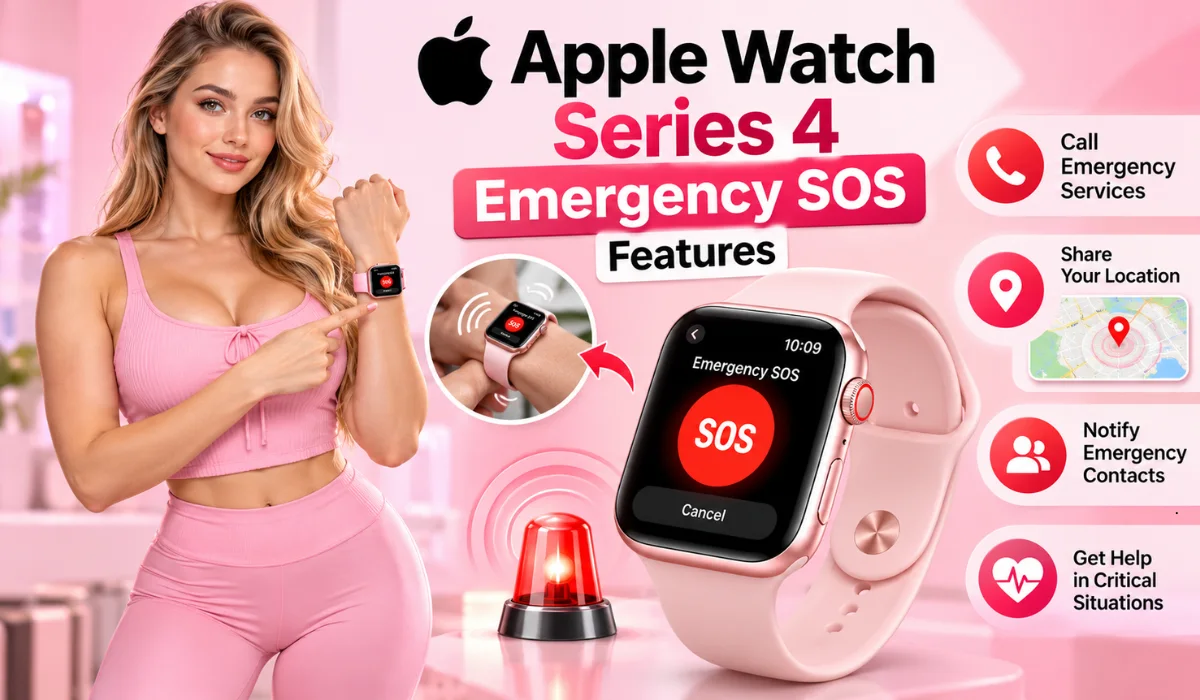
Many people ask, What are the emergency SOS features of Apple Watch Series 4? Simply put, this system connects you to help instantly. When you activate the SOS mode, your watch automatically calls local emergency services. It also shares your exact GPS location.
- Direct Dialing: Connects straight to local dispatchers.
- Automatic Location Sharing: Sends map coordinates to responders.
- Medical ID Integration: Displays your blood type and allergies to paramedics.
"Wearable safety tools bridge the crucial gap between an accident happening and emergency responders arriving on the scene." — Dr. Robert Chen, Emergency Medicine Specialist
Why Is Emergency SOS Useful on Apple Watch Series 4?
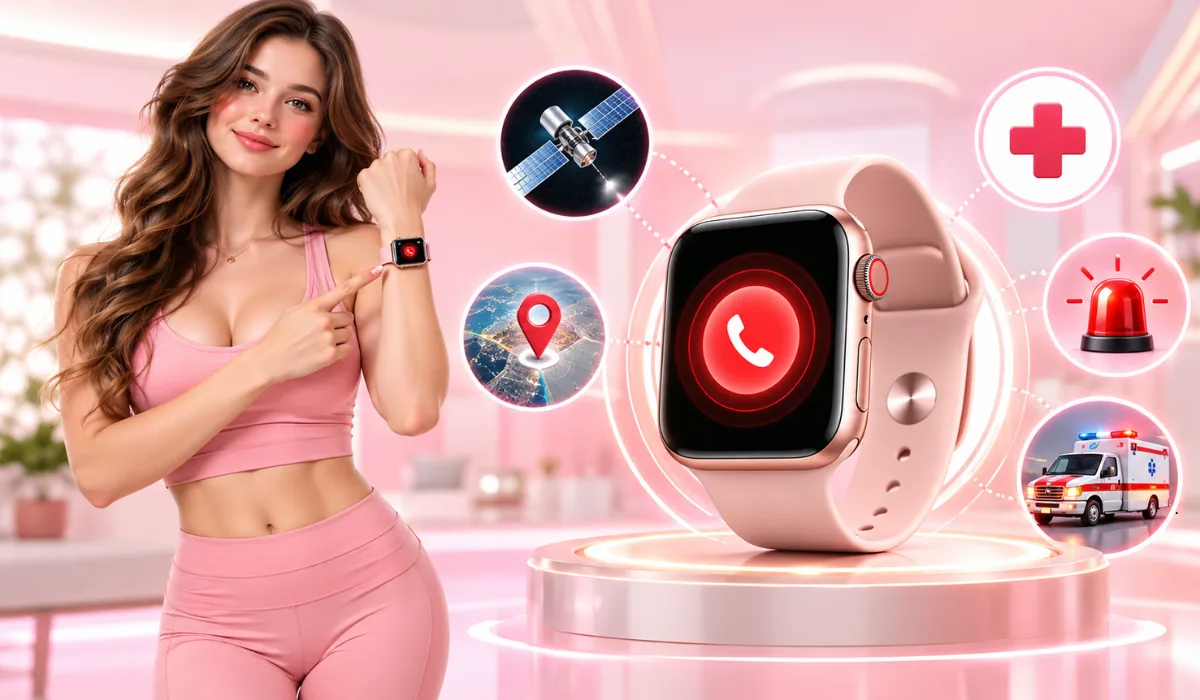
Accidents happen when we least expect them. Knowing Why is Emergency SOS useful on Apple Watch Series 4? helps us value our gadgets even more. If you slip on a wet floor or feel sudden chest pain, every second counts. Traditional phones might be stuck deep inside a bag or out of reach. Your watch is right there on your skin. It removes panic from a crisis. With a simple press, help is on the way. It makes you feel secure wherever you go.
Read Also: Apple Watch Series 4 Display Specifications: Resolution And Features Guide
Top 10 Apple Watch Series 4 Emergency Sos Features
Let us look at the Top 10 Apple Watch Series 4 Emergency Sos Features that make this device a true lifesaver:
- Side Button Hold: Press and hold the side button to trigger a countdown.
- Fall Detection: Automatically senses hard falls and calls for help if you stay down.
- Emergency Contact Notifications: Texts your family with live location updates.
- Medical ID Screen: Gives doctors vital health details instantly.
- Silent Activation: Lets you call for help without making a loud siren sound.
- Cellular and Wi-Fi Flexibility: Works via nearby iPhone or direct cellular.
- International Emergency Calling: Connects to local numbers when traveling abroad.
- Quick Cancel Option: Stops false alarms easily if triggered by mistake.
- Location Tracking Updates: Keeps sending map updates to contacts for a set period.
- Customizable SOS Settings: Tailor how the buttons respond in the Watch app.
How Do You Activate Emergency SOS on Apple Watch Series 4?
If you ever face danger, knowing How do you activate Emergency SOS on Apple Watch Series 4? is vital. It takes only a few seconds.
- Press and hold the side button (the flat button below the digital crown).
- Wait for the Emergency Call slider to appear on the screen.
- Drag the slider to the right, or keep holding the button until a loud warning sound starts and the countdown finishes.
The watch will then call emergency services automatically.
Staying Connected: Apple Watch Emergency SOS Without Cellular

Can you use safety tools if your watch lacks mobile data? Yes! Apple Watch Emergency SOS without cellular works smoothly as long as your paired iPhone is nearby. If your iPhone is close by, your watch uses its Bluetooth and internet connection to make calls and send texts. If you own a Cellular model, the watch operates independently even without your phone in your pocket.
Managing Alerts: Apple Watch Emergency SOS Turn Off
Accidents happen, and sometimes you trigger the alarm by mistake. Knowing about Apple Watch Emergency SOS turn off steps saves you from stress. If the countdown starts by accident, just press Cancel on your screen before it ends. If the call already connected to emergency dispatchers, do not just hang up. Stay on the line, tell the operator it was a false alarm, and let them know you are safe.
Read Also: Apple Watch Series 4 Battery Life: Maximize Performance
Understanding Cues: Apple Watch Emergency SOS Sound
When you trigger a countdown, you will hear an audio alert. The Apple Watch emergency SOS sound serves a major purpose. It lets you know that a call is about to go out. Even if your watch is set to silent or Do Not Disturb mode, this specific warning chime will still sound so you can cancel it if it was an accidental touch.
Keeping Watch: Apple Watch Series 4 Emergency Alert System
The Apple Watch Series 4 emergency alert system combines hardware sensors and software logic.
"Integrating hardware sensors with automated cloud messaging has revolutionized personal safety devices for everyday consumers." — Sarah Jenkins, Consumer Tech Analyst
When the accelerometer and gyroscope notice a sudden drop, the Apple Watch Series 4 SOS activation process kicks off. It analyzes your movement. If you do not stand up or move for one minute, it assumes you need medical help.
Mechanics: Apple Watch Series 4 SOS Button Functionality
The physical layout matters during a panic. The Apple Watch Series 4 SOS button functionality relies on the side button. You can configure this button in your settings app. You can choose between holding the button down or pressing it rapidly to start the countdown.
Informing Loved Ones: Emergency Contact Notifications on Apple Watch
Help goes beyond just the police or paramedics. Emergency contact notifications on Apple Watch ensure your family stays in the loop. Once your emergency call ends, your watch texts your pre-selected contacts automatically. It sends them a map link showing your location. If you move around, they receive updates so they can find you quickly.
Fast Response: Emergency Services Dialing on Smartwatch
Time is everything during a heart attack or severe injury. Emergency services dialing on smartwatch cuts down delay times. Instead of fumbling for phone numbers, your watch dials the local emergency number (like 911 or 112) based on your geographic region automatically.
Tracking Help: Apple Watch Location Sharing During Emergencies

Rescuers need to find you fast, especially outdoors. Apple Watch location sharing during emergencies pinpoints your coordinates using built-in GPS. It transmits this data straight to dispatchers and loops in your emergency contacts so everyone knows where you are.
Safety First: Apple Watch Emergency Response Functionality
The overall Apple Watch emergency response functionality acts as an invisible shield. By blending Fall Detection, Medical ID, and direct SOS calling, Apple created a robust tool that protects users of all ages every single day.
Read Also: Top 10 Apple Watch Series 4 Hidden Features: Secrets You
Deep Dive: Apple Watch Series 4 Safety Features Explained
To wrap it all up, the Apple Watch Series 4 safety features explained show how far wearable tech has come. From sensing hard falls to texting loved ones, this watch does more than tell time—it saves lives. Take a few minutes today to set up your Medical ID and emergency contacts in the iPhone Health app. You will be glad you did!
Frequently Asked Questions
How do I add emergency contacts to my Apple Watch?
Open the Health app on your paired iPhone, tap your profile picture, select Medical ID, scroll down to Emergency Contacts, and tap Edit to add trusted family members or friends.
Does Fall Detection work automatically on Apple Watch Series 4?
Yes! If you are age 55 or older, Fall Detection is turned on by default. If you are younger, you can enable it manually inside the Watch app under Emergency SOS or Fall Detection.
Can I cancel an emergency call if I press the button by accident?
Yes, simply tap the Cancel button on your watch screen before the countdown ends, or tell the dispatcher that everything is fine if the call connects.
.