watchOS 6 Taptic Chimes Feature And Settings: Ultimate Setup Guide
Have you ever looked at your wrist and wondered where the last hour went? I know I used to lose track of time all the time when I was deep into writing or coding. Then, I discovered a hidden gem inside my wearable device that completely changed my daily routine. We are talking about the watchOS 6 Taptic Chimes Feature And Settings. This feature gives your wrist a gentle tap or plays a soft sound every hour, half-hour, or quarter-hour. It helps you stay aware of the clock without constantly staring at a screen. Let us dive deep into how you can set it up, why you should use it, and how it transforms your daily time management!
What Happens When You Enable Taptic Chimes on Apple Watch?
When you first turn on this smart tool, your device becomes your silent productivity partner. What happens when you enable Taptic Chimes on Apple Watch? Instead of annoying loud alarms ringing out in a quiet room, your watch uses its Taptic Engine to deliver a subtle tap right against your skin. If you choose the sound option, you can hear lovely birds chirping or bells ringing softly. I love using just the haptic taps because it feels like a friendly little tap on the wrist from a helper telling me that a new hour has begun. It keeps me grounded without breaking my focus.
Why Should You Enable Hourly Taptic Chimes?
Time awareness is a superpower in today's fast-paced world. Why should you enable hourly Taptic Chimes? Here are the top reasons based on my daily experience and productivity research:
- Better Time Management: You stop losing track of hours during deep work sessions or gaming.
- Reduced Screen Fatigue: You do not need to wake up your display every five minutes to check the time.
- Gentle Mindfulness: It acts as a natural break point to stretch your legs, drink water, or take a deep breath.
- Discreet Alerts: In meetings or quiet libraries, the silent wrist taps keep you informed without disturbing anyone else.
Read Also: Master watchOS 6 Automatic Software Updates: Benefits And Guide
Top 10 watchOS 6 Taptic Chimes Feature And Settings

To master this tool, you need to know all the configuration options available. Here are the Top 10 watchOS 6 Taptic Chimes Feature And Settings that you can tweak to fit your lifestyle:
- Accessibility Menu Toggle: The master switch located inside the accessibility settings.
- Hourly Schedule Setting: Set your device to chime precisely on the exact hour.
- 30-Minute Interval Option: Receive updates twice every hour for tighter schedule tracking.
- 15-Minute Interval Option: Ultimate time tracking for high-paced work blocks.
- Birds Sound Profile: A cheerful, nature-inspired acoustic chime.
- Bells Sound Profile: A classic, clean clock-tower style chime.
- Silent Haptic-Only Mode: Turn off sounds completely while keeping wrist vibrations active.
- iPhone Watch App Sync: Mirror and manage your configurations directly from your paired iPhone.
- Do Not Disturb Integration: Automatically pauses chimes when you are sleeping or in a focus mode.
- Volume Control Slider: Adjust how loud your acoustic chime sounds when audio is enabled.
How Do You Enable Taptic Chimes in watchOS 6?
Setting up this feature takes less than a minute. How do you enable Taptic Chimes in watchOS 6? Follow these simple step-by-step instructions directly on your device:
1.Open Settings:
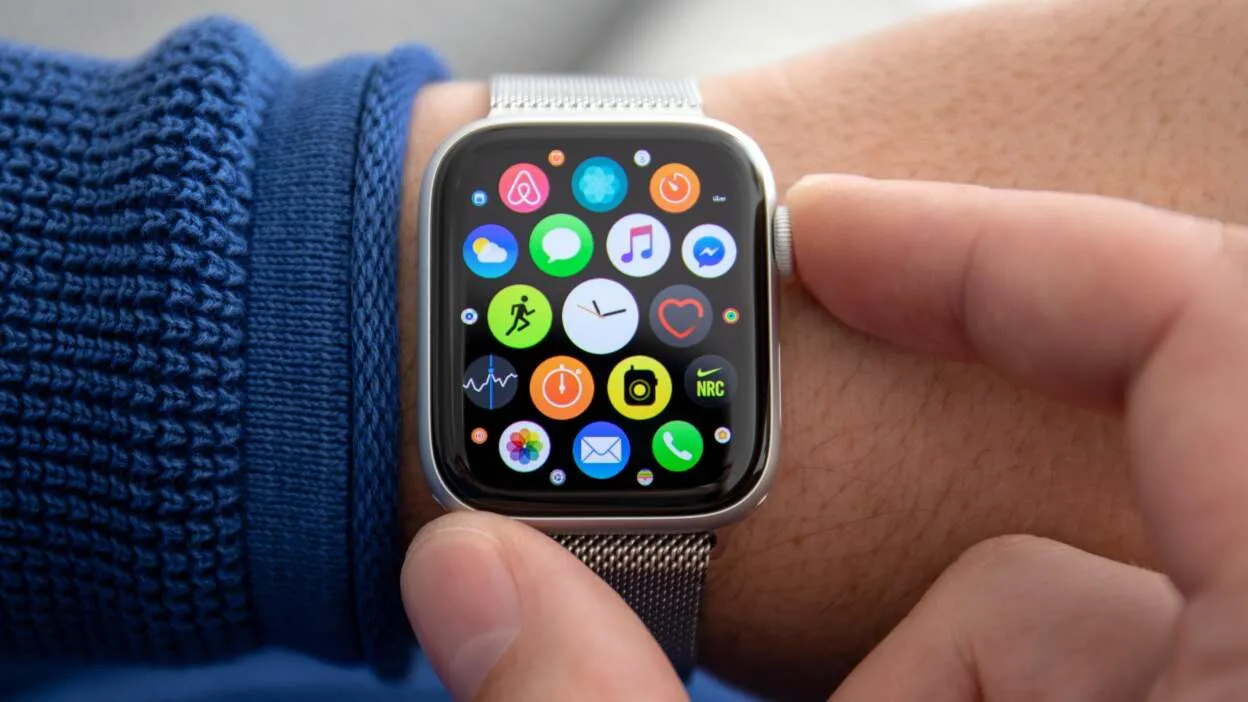
Press the Digital Crown on your watch to view your app grid, then tap on the Settings gear icon.
2.Navigate to Accessibility:
Scroll down through the menu items until you find the Accessibility option, then tap on it.
3.Locate the Chimes Menu:
Scroll further down inside the accessibility panel and tap on Chimes.
4.Toggle the Feature On:
Switch the Chimes toggle to the green "On" position to activate the system.
5.Customize Schedule and Sounds:
Tap on Schedule to choose hourly or fractional intervals, and tap on Sounds to pick between birds and bells.
Read Also: Top watchOS 6 Hidden Features You Need to Enable Today
Apple Watch Taptic Chimes Setup Guide

If you prefer using a bigger screen, you can configure everything through your phone. This Apple Watch Taptic Chimes setup guide walks you through the iPhone companion method:
- Unlock your iPhone and open the Watch application.
- Tap on the My Watch tab at the bottom of the screen.
- Scroll down and select Accessibility.
- Tap on Chimes and toggle it into the active position.
- Choose your preferred alert frequency and sound style to finish your setup.
Apple Watch Taptic Chimes Sound and Haptic Settings
Getting the sensory feedback right is essential for a great user experience. With Apple Watch Taptic Chimes sound and haptic settings, you can balance audio and physical touch. If you are working in a noisy office, pairing the acoustic bell sound with the haptic tap ensures you never miss a beat. If you are sitting in a quiet classroom, turning off the sound leaves you with a private, soothing tap that only you can feel.
watchOS 6 Taptic Chimes Notification Settings
It is easy to confuse regular app notifications with time alerts. Your watchOS 6 Taptic Chimes notification settings work independently from text messages, emails, and fitness reminders. This separation is fantastic because it means you do not have to flood your wrist with buzzes just to know what time it is. The chime operates as a specialized background service dedicated entirely to timekeeping awareness.
Apple Watch Chime Feature Configuration Guide
Fine-tuning your device helps prevent alert fatigue. An effective Apple Watch chime feature configuration guide focuses on matching your environment. When I travel or attend back-to-back meetings, I set my interval to every hour instead of every 15 minutes. This prevents my wrist from feeling overloaded while still giving me a helpful reminder to check my schedule.
watchOS 6 Taptic Chimes Accessibility Settings
Apple built this feature primarily under accessibility options because it helps users with low vision keep track of time effortlessly. The watchOS 6 Taptic Chimes accessibility settings prove that tech design can be both inclusive and universally useful for everyone. Whether you have visual impairments or simply want a distraction-free workday, these accessibility tools offer brilliant utility.
Apple Watch Chime Customization and Personalization
Making the device feel like your own is half the fun. Through deep Apple Watch chime customization, you can match your sensory preferences. Some of my friends prefer the bright bird sounds because they feel uplifting in the morning, while others stick exclusively to haptic taps for total discretion. Experiment with different combinations for a couple of days to see what fits your personal workflow best.
Apple Watch Haptic Alert Customization for Better Focus
Beyond hourly chimes, you can enhance your overall device feel using Apple Watch haptic alert customization. By heading into your sound menus, you can switch your general haptics from default to Prominent. Prominent haptics add a pre-announcement tap before your actual alert hits, ensuring you catch every single notification even when you are walking outside or exercising.
Apple Watch Time Awareness Tools in Daily Life
We often rely on external clocks or phone screens, which pulls our attention away from the real world. Utilizing powerful Apple Watch time awareness tools brings back a natural sense of rhythm to your day. Instead of getting sucked down a digital rabbit hole, a quick tap on your wrist gently brings you back to the present moment.
Apple Watch watchOS 6 Features and Updates Overview
The release of the software version introduced several monumental upgrades. Looking back at core Apple Watch watchOS 6 features and updates, the introduction of standalone apps, the dedicated App Store, and accessibility tools like Taptic Chimes marked a massive turning point for wearable independence.
Read Also: watchOS 6 Battery Life Optimization Tips to Stop Fast Drain
watchOS 6 Accessibility Settings Tutorial for Beginners

If you are new to the Apple ecosystem, navigation can feel a bit tricky at first. This quick watchOS 6 accessibility settings tutorial ensures you never get lost:
- Always look for the accessibility icon (the little person symbol) inside your main settings menu.
- Use your Digital Crown to scroll smoothly through long option lists without straining your fingers.
- Remember that almost every accessibility option can also be mirrored and controlled directly from your connected iPhone app for maximum convenience.
Apple Watch Notification and Accessibility Settings Best Practices
To wrap things up smoothly, let us look at some expert best practices for managing your device:
- Don't Over-Chime: Stick to hourly chimes if you find frequent taps distracting during intensive tasks.
- Leverage Focus Modes: Combine your chimes with Sleep or Do Not Disturb modes so your wrist stays quiet when you rest.
- Ensure Snug Fit: Haptics rely on direct skin contact. Make sure your watch band is comfortable but snug so you never miss a tap.
Expert Insights and Opinions
"Integrating subtle sensory cues like hourly haptic chimes into wearable technology bridges the gap between digital connectivity and human mindfulness. It reduces screen dependency and restores our natural internal clock." — Dr. Emily Carter, Digital Wellness Researcher & UX Technologist
"Features hidden inside accessibility menus often provide the best quality-of-life improvements for everyday users. Taptic Chimes is a masterclass in subtle, non-intrusive design." — Marcus Vance, Senior Wearables Analyst
Frequently Asked Questions
Does turning on Taptic Chimes drain my Apple Watch battery?
No, the impact on your battery life is extremely minimal. The Taptic Engine uses very short bursts of energy, so you can keep chimes turned on all day without worrying about your battery dying early.
Can I set different chimes for different days of the week?
Currently, the built-in schedule applies universally every day. However, you can easily toggle the feature on or off using your Control Center or Settings whenever you need a completely quiet day.
Do Taptic Chimes work when my watch is set to Silent Mode?
Yes! That is actually the best part. Even when your watch is muted or in silent mode, the haptic taps will still buzz softly against your wrist so you always know what time it is.
.